How to Copy Jira Configuration to Another Site (and Keep It in Sync)
If you manage more than one Jira site, you already know how it goes.
You spend hours setting up workflows, custom fields, and permission schemes on one site, then you have to do the exact same thing on the next one. Manually, from scratch.
And the moment a configuration changes on one site, the others fall out of sync.
This guide covers how to copy Jira configuration to another site, where it breaks down, and how to do it properly at scale.
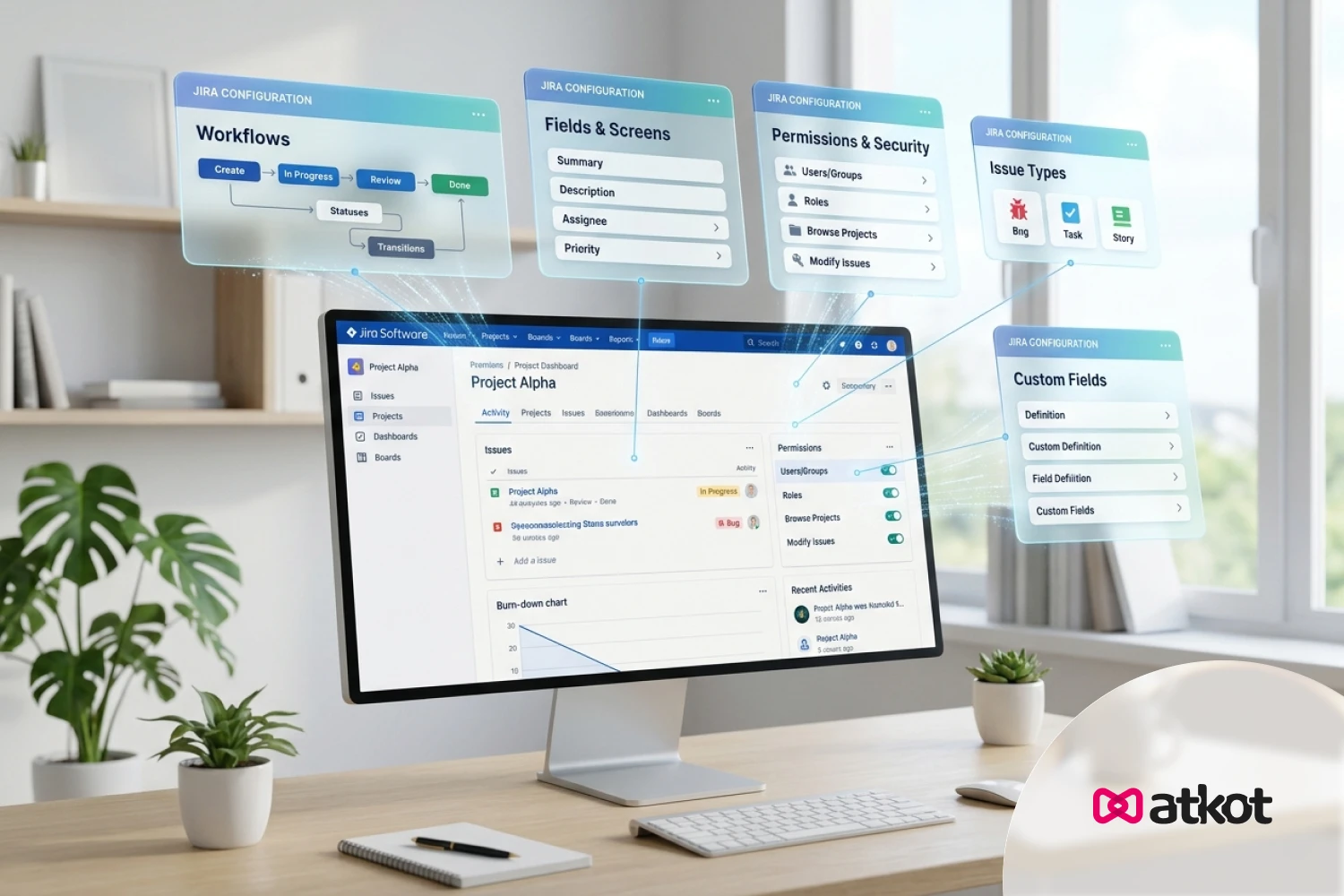
What Counts as "Jira Configuration"
Before copying anything, it helps to know exactly what's involved. Jira configuration isn't just one thing, it's a collection of building blocks that define how your site behaves.
This includes:
- Workflows and workflow schemes
- Issue types and issue type schemes
- Custom fields and field configurations
- Screens and screen schemes
- Automation rules
- Permission schemes and project roles
- Priorities, statuses, and resolutions
When people say they want to "copy their Jira setup," they usually mean all of the above Jira modules or at least most of it.
Workflows, custom fields, and permissions are the building blocks of any Jira project management setup and all of them need to be copied correctly. Missing even one, like a custom field scoped to the wrong project, can break workflows silently on the target site.
For example, a "Priority" field that doesn't appear on the transition screen can cause tickets to get stuck in "In Progress" indefinitely, with no error message to alert you.
Why You'd Need to Copy Configuration Across Sites
This comes up more often than you'd think. Common scenarios:
- New team or region getting onboarded: A new business unit needs their own Jira site, but they should follow the same processes as the rest of the organization.
- Staging to production: You test a configuration change on a staging instance and need to push it to production without rebuilding it by hand.
- Post-merger standardisation: Two companies merge. Both use Jira. Neither setup matches the other. You need to consolidate.
- Scaling a "master" site: You've built a clean, well-structured Jira site and want to use it as a template for every new instance you spin up.
In all these cases, the goal is the same: get site B to match site A, without spending a full day doing it manually.
How to Copy Jira Configuration Manually
This is what most admins do the first time. It works, but it doesn't scale.
Step 1: Export Your Workflows
On Jira Server or Data Center, you can export a workflow as XML. Go to Settings → Issues → Workflows, find the workflow, and select Export as XML. Then import that XML on the target site.
On Jira Cloud, this isn't available. You'll need to recreate workflows manually through the workflow editor.
Step 2: Recreate Custom Fields
Custom fields don't export cleanly. You'll need to:
- Note down every custom field on the source site (name, type, context)
- Create each one manually on the target site
- Match the field context and scope exactly
A single mismatch like a field scoped to the wrong project causes issues to stop displaying data correctly.
Step 3: Rebuild Issue Type Schemes and Screen Schemes
Jira uses schemes to link issue types and screens to projects. These need to be recreated on the target site and mapped correctly.
This step is where most admins lose time. There's no shortcut, it's manual configuration through Settings → Issues.
Note: You cannot natively copy an entire project with all its settings. You're only copying the building blocks (issue types, workflows, screens) and reassembling them manually on the target site.
Step 4: Reapply Permissions and Roles
Permission schemes define who can do what. Role assignments determine who fills those roles per project.
You'll need to recreate the permission scheme on the target site, then reassign roles to the appropriate groups or users.
Step 5: Verify Everything
Once you think you're done, go through the target site project by project and confirm:
- Workflows trigger correctly
- Fields show up in the right places
- Permissions behave as expected
- Automations fire when they should
This verification step alone can take hours on a complex site.
Where Manual Copying Breaks Down
For a one-off migration between two simple sites, manual copying is manageable. Beyond that, it starts to fall apart.
Here's what goes wrong:
- Configuration drift: Site A gets updated. Someone forgets to update site B. Over time, the two sites diverge. Nobody notices until something breaks.
- No audit trail: There's no record of what was copied, when, or by whom. If something goes wrong, you're debugging blind.
- No comparison before deploying: You can't easily see what's different between two sites before making changes. You're working from memory and notes.
- No rollback: If copying a configuration breaks something on the target site, you have no clean way to undo it. You're fixing it manually.
- It doesn't repeat well: The third time you do this across five sites, the process degrades. Steps get skipped. Mistakes get made.
A typical medium-complexity Jira site takes 4–8 hours to copy manually. That's assuming nothing goes wrong. If you're managing three sites, that's up to 24 hours of repetitive admin work.
How Atkot Copies Jira Configuration Across Sites
Atkot is a Jira configuration management tool built specifically for this problem: syncing, copying, and comparing Jira configurations across multiple sites without doing it by hand. Here's how the process works:
1. Connect Your Jira Sites
Link your source and target Jira instances to Atkot. It pulls in your existing configuration so you have a full picture of what's on each site.
2. Select What to Copy
You choose exactly which modules to copy: workflows, custom fields, issue types, screens, or all of them. You're not forced into an all-or-nothing deployment.
3. Compare Before You Deploy
Atkot shows you the differences between your source and target site before anything changes. You can see exactly what will be updated and decide whether to proceed.
4. Deploy with One Action
Atkot pushes the selected configuration to the target site. No manual recreation or field-by-field rebuilding.
Total time: 10–15 minutes, even for complex configurations.
5. Full Audit Log
Every change is logged including what was updated, when, and by whom. Useful for compliance reviews and for debugging if something doesn't look right.
6. Roll Back if Needed
If a deployment causes problems, you can roll back to the previous state quickly. No manual cleanup is required.
7. Schedule Recurring Syncs
Set up ongoing syncs between sites so configuration drift doesn't accumulate over time. When site A changes, site B stays up to date automatically.
Copy Jira Configuration Manually vs Atkot Comparison
Manual |
With Atkot |
|
| Steps required |
5+ per module |
One deployment action |
| Time per site |
4–8 hours |
10–15 Minutes |
| Configuration drift |
Likely over time |
Prevented by syncing |
| Audit trail |
None | Full log of every change |
| Rollback |
Not available |
Built in |
| Compare before deploy |
Manual notes only |
Visual difference |
Which Jira Modules can Atkot Copy?
Atkot supports copying and syncing the core configuration modules that make up a Jira site:
- Projects: settings, naming, permissions
- Issue types: types and issue type schemes
- Workflows: workflow rules and workflow schemes
- Custom fields: field types, contexts, and configurations
- Screens: screen layouts and screen schemes
- Automation rules: rules you've built in Jira
- Priorities: priority levels and definitions
- Statuses and resolutions: consistent across sites
- Roles and permission schemes: access control aligned everywhere
This covers the full scope of what a Jira admin typically needs to copy when setting up a new site or keeping existing ones in sync.
A Note on Jira Cloud vs Server/Data Center
- If you're on Jira Cloud, manual copying is significantly harder. Atlassian removed XML workflow export, and there's no native tool to copy configuration between cloud sites. You're rebuilding from scratch every time.
- If you're on Server or Data Center, XML export gives you a bit more to work with, but it only covers workflows, not custom fields, screens, or permissions.
In both cases, the manual process gets painful once you're managing more than one or two sites. The complexity isn't in doing it once, it's in doing it repeatedly, accurately, and without breaking anything.
When NOT to Use Atkot
Let's be direct: if you only have one Jira site and never plan to add another, you don't need Atkot. The manual approach or even just leaving things as they are is perfectly fine.
Atkot is built for teams managing two or more Jira sites who are tired of:
- Recreating the same configuration over and over
- Finding out sites have drifted apart when something breaks
- Having no audit trail or rollback when changes go wrong
If that sounds like your reality, keep reading.
The Better Way to Copy Jira Configuration Across Sites
Copying Jira configuration to another site is straightforward for a single migration. The manual steps work.
The problem is repeatability. The more sites you manage, the more things drift, the more time you spend on admin work, and the more things break quietly.
If you're managing Jira configuration across multiple sites, see how Atkot handles it, from connecting your sites to deploying configuration changes with a full audit trail and rollback built in.
Ready to stop copying configurations by hand?
Book a live demo of Atkot to see a full site copy in under 2 minutes.