How to Use Jira for Project Management + Best Practices
Jira is one of the most powerful and widely used tools for project management but it’s also one of the easiest to misuse. Teams often rush setup, over-customize workflows, and end up with cluttered boards that no one trusts.
This guide explains how to use Jira for project management the right way: from initial setup to maintaining consistency as your team grows.
What is Jira in Project Management?
Jira is a project management and issue-tracking platform built by Atlassian, originally designed for software development teams. Today it's used across industries for product, marketing, operations, IT to plan, track, and deliver work using structured workflows, boards, and reports.
What Jira is:
- A single source of truth for tasks and progress
- A workflow-based project management system
- A tool for tracking ownership and status
What Jira is not:
- A communication platform (it won't replace Slack or email)A document management tool
- A substitute for team collaboration habits
Three Main Project Types in Jira:
- Scrum: Best for teams working in sprints with defined timelines.
- Kanban: Ideal for continuous workflows without fixed deadlines.
- Team-managed: Simple to set up but difficult to scale due to lack of centralized control.
Important:
Each team manages its own fields, workflows, and permissions in isolation. If you expect your team to grow, start with company-managed projects. Migrating later is time-consuming and messy.
Pick the project type that matches how your team actually works.
How to Set Up Jira for Project Management the Right Way
When creating a new project, resist the temptation to customize everything immediately. Start with a clean default template and adjust only as your team finds real friction points.
Configuration |
What to do |
Common mistake |
|---|---|---|
| Issue types | Define kinds of work (Epic, Story, Task, Bug). Keep it simple, too many types early creates confusion. | Creating "Urgent Bug" and "Low Priority Bug" as separate types instead of using a priority field. |
| Workflow statuses | Map your actual process. Solid start: To Do → In Progress → In Review → Done. | Adding "Blocked" or "Ready for QA" before you know you need them. |
| Board filters | Ensure your board shows only work relevant to your team. | Including every project in the company, your board becomes unusable. |
| Permissions | Set who can view, create, edit, or transition issues. | Giving everyone admin access "just in case." |
| Screens & fields | Decide what fields appear on each screen. | Making every field required. Your team will hate Jira instantly. |
Fewer required fields = higher adoption.
Start with just Summary, Description, Assignee, and Priority. Add more only when the lack of that field causes a real problem. Every configuration you add is something you'll need to maintain.
The best Jira setups are lean and deliberate.
How to Structure Work in Jira (Epics, Stories, Tasks)
Jira's hierarchy helps you break big goals into manageable pieces. Here's how to think about it:
- Epics are large bodies of work with a clear outcome. Example of a good Epic: "Migrate user authentication to OAuth 2.0", it has a defined start, end, and success metric.
- Stories (or Tasks) are individual units of work that make up an Epic. They should be completable within a sprint or a few days.
- Sub-tasks are optional but useful when a Story has distinct steps owned by different people.
A common mistake: Creating Epics that are really just categories. "Backend Work" is not an Epic, it's a label that will never be "done." An Epic should represent a deliverable outcome with a defined end, not an endless bucket.
Use the Backlog view to prioritise work before a sprint begins. Assign story points or time estimates to get a realistic picture of what actually fits.
How to Use Jira for Agile Project Management (Sprints)
If you're using Scrum, sprints are your engine. Here's the basic rhythm:
- Sprint Planning: Pull items from the backlog, align on goals, and agree on ownership before you start.
- Daily Standups: Use the Active Sprint board as your visual anchor. Move issues as work progresses.
- Sprint Review: Demo completed work. Close incomplete items out or roll them forward intentionally.
- Retrospective: Reflect on your process, not just output. Jira won't tell you why a story got blocked; your team will.
Use the Burndown Chart Smartly
The burndown chart shows whether your sprint is on pace. Two specific signals to watch for:
- If the line is flat for two days straight → that's a signal to have a conversation, not ignore it. Is work stuck? Are people not updating issues?
- If the line drops sharply on the last day → your team is probably back-loading work or not updating issues daily. Both are problems worth raising in retrospect.
Jira Reporting and Dashboards for Better Visibility
One of Jira's most underused features is its reporting suite. Most teams only look at the board, but Jira offers much more visibility if you use it and know what to look for.
Report |
What it shows |
What to watch for |
| Velocity Chart | How much work your team completes per sprint over time |
If velocity fluctuates more than 20% sprint to sprint, your estimation or scope management is inconsistent. |
| Cumulative Flow Diagram |
Where work piles up in your workflow |
If any colored band keeps widening over time, you have a bottleneck, usually "In Progress" or "In Review." |
| Burndown/Burnup Charts |
Whether you're on track to hit your sprint or version goal |
Flat line = no progress. Sharp last-day drop = back-loading or poor updates. |
| Custom Dashboards |
A curated view for stakeholders |
Build a dashboard for leadership that shows completed work and upcoming priorities without giving them access to your entire backlog. |
Custom dashboards are private by default unless you explicitly share them. If you build a useful dashboard, don't forget to share it with your team or stakeholders.
Good reports don't just tell you where you are. They help you have better conversations about where you're going.
How to Keep Jira Configuration Consistent as You Scale
Jira is easy to set up once. It becomes a problem when you have five projects, three teams, and nobody's sure which workflow is the "right" one.
Common configuration drift problems:
- Duplicate custom fields with slightly different names
- Workflows that diverge across projects over time
- Permission schemes that haven't been reviewed in months
- New sites that don't match the standards of the original
When configuration changes are made manually across multiple Jira instances, inconsistencies creep in no matter how careful your team is.
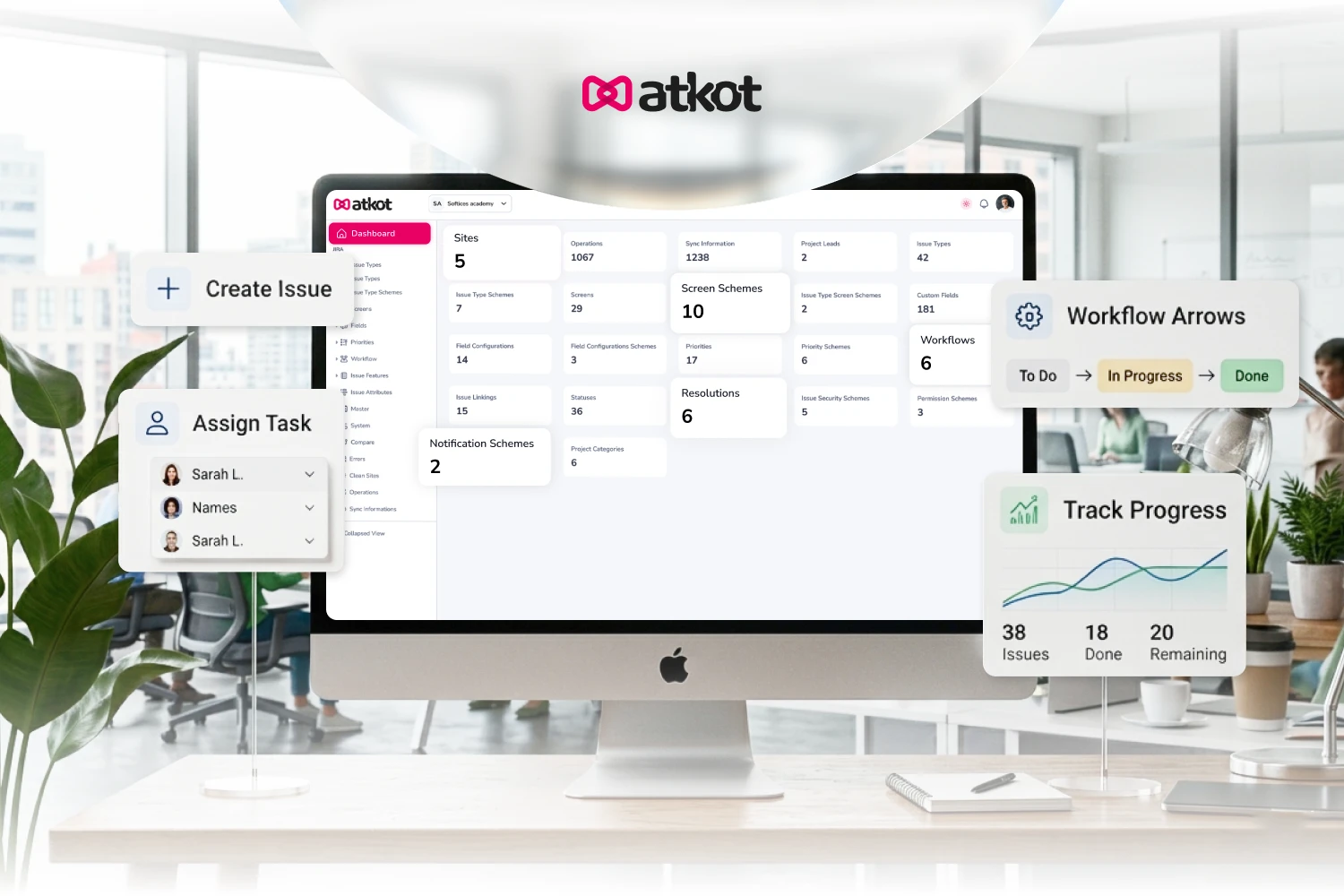
This is exactly the problem Atkot is built to solve. Atkot lets you standardize and manage Jira configurations at scale across projects, teams, and instances by allowing you to:
- Define Jira configurations as code
- Version-control workflows and fields
- Deploy consistent setups across projects or instances
- Roll back changes safely if something goes wrong
Instead of manually updating multiple Jira environments, you ensure everything stays aligned automatically.
Using Jira Effectively for Project Management
Jira is a tool that rewards structure. Set it up thoughtfully, keep your workflows lean, use the reports it gives you, and revisit your configuration regularly as your team grows.
Learning how to use Jira for project management the right way isn't about mastering every feature, it's about applying the right ones consistently. Start simple. Add complexity only when friction proves you need it. And never let configuration drift go unaddressed.
And when consistency becomes hard to maintain at scale, that's when tools like Atkot become essential.
The best Jira setups don't do everything. They do the right things, every time, for everyone.
If your team is growing and Jira configurations are getting harder to manage, it’s time to bring consistency into the system → Request Atkot Demo